I’ve lived in vi/vim for 20+ years. It’s everywhere, it boots fast, it never asks for much. But I kept side‑eyeing Neovim because of all the modern niceties - LSP, treesitter, async plugins - and never wanted to spend whole day wiring it all up.
I finally switched. This is how I turned Neovim (via LazyVim) into a comfortable Python IDE on Arch. Think LSP, linting, formatting, and debugging - without yak‑shaving a monster config.
Specification
| item | spec |
|---|---|
| os | Arch Linux with Hyprland |
| kernel | 6.18+ |
| hardware | ASUS ROG Zephyrus G14 |
Steps
Install neovim and lazyvim
git clone https://github.com/LazyVim/starter ~/.config/nvimLaunch nvim with lazyvim started
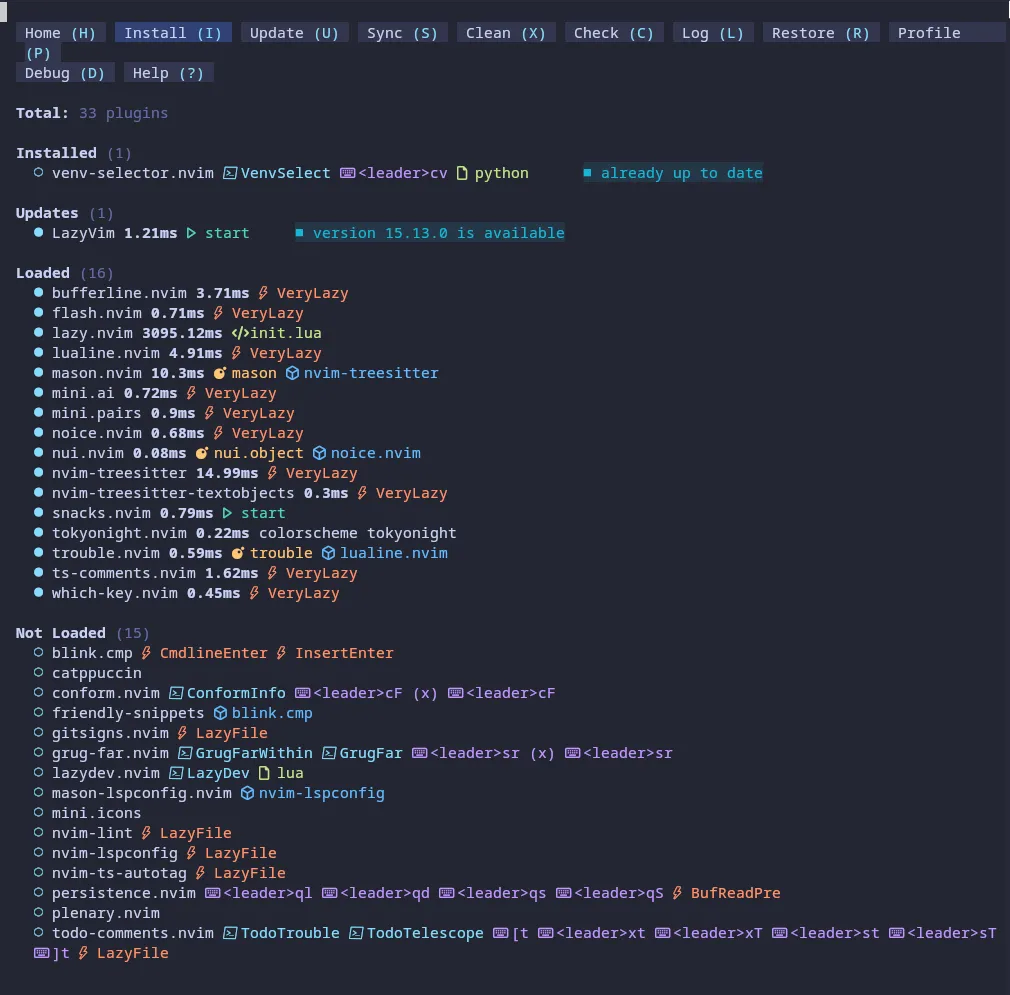
nvimYou’ll see the following. Toggle the plugins you want.
Enable Python IDE basics
LazyVim ships with a Python extras pack. The quickest way is to add it to your config:
echo 'return { import = "lazyvim.plugins.extras.lang.python" }' \
  > ~/.config/nvim/lua/plugins/python.lua
Reload Neovim and run :Lazy sync. That pulls in:
pyrightfor LSP and type checkingrufffor linting + quick fixesblack(orruff format) for formattingdebugpyfor debugging vianvim-dap
Install the tooling on Arch
sudo pacman -S neovim python python-pip
pip install --user pyright ruff black debugpy
If you prefer pipx, swap the last line for:
pipx install pyright ruff black debugpyUse it day-to-day
- Open a project:
nvim . - LSP actions:
gd(definition),gr(references),<leader>ca(code action) - Formatting:
<leader>cf(or enable format on save in LazyVim settings) - Lint fixes:
:RuffFixAllor just run<leader>cfwhen Ruff is the configured formatter - Debug:
:DapContinueto start/attach,<leader>dbto toggle breakpoints
Optional tweaks
- Virtualenv awareness: activate your venv (
python -m venv .venv && source .venv/bin/activate) so Pyright and tools pick it up. - Type checking level: add
pyrightconfig.jsonwith"typeCheckingMode": "strict"if you like extra noise. - Import sorting: keep using Ruff; set it as the formatter to get
ruff format+ruff check --fix.
Why LazyVim?
- Sensible defaults without a giant dotfiles repo.
- Treesitter, telescope, statusline, bufferline—already wired.
- Extras packs let you opt into language support instead of building it from scratch.
That’s the whole move: clone LazyVim, drop in the Python extras, install the Python tools, and you’re in a modern Neovim IDE without losing the modal muscle memory.